Platforms
Every platform. One stream.
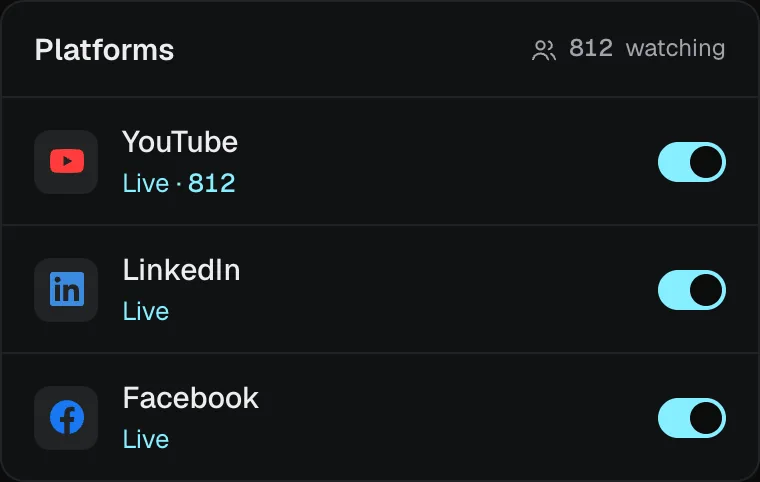
Go live on YouTube, Twitch, Kick and ten more at once, and on any RTMP address, from one stream out of your studio.
At once
As many as your plan carries.
Pick the platforms for each stream and they all go live together: up to 20 at once on Studio Max. Live hours are unlimited on every paid plan.
- 2
- Free
- 5
- Studio
- 8
- Studio Plus
- 12
- Studio Pro
- 20
- Studio Max
Every platform, by name
Where to find each key.
Paste a platform’s stream key into Platforms once, test it off air, and it is ready for every stream after. Each line below is from the platform’s own help pages.
- YouTube
Where: YouTube Studio › Go live › Stream
You paste: the stream key
- LinkedIn
Where: Go live › Stream from a third-party tool (RTMP URL + key)
You paste: the server address and the stream key
- Facebook
Where: Live Producer › Streaming software › Stream key
You paste: the stream key
- X
Where: Media Studio › Producer › your broadcast › Source (RTMP URL + key)
You paste: the server address and the stream key
- Twitch
Where: Creator Dashboard › Settings › Stream
You paste: the stream key
- Kick
Where: Creator Dashboard › Settings › Stream key
You paste: the stream key
- TikTok
Where: LIVE Studio › Server URL + Stream key
You paste: the server address and the stream key
- Instagram
Where: instagram.com › Add post › Live › Go live: the URL and stream key (a professional account; the key changes every time)
You paste: the server address and the stream key
- Rumble
Where: Rumble Studio › your livestream › Direct RTMP: Stream URL + Stream key
You paste: the server address and the stream key
- Trovo
Where: Creator Studio › Stream: Host URL + Stream Key
You paste: the server address and the stream key
- DLive
Where: Go Live dashboard › fill in the stream details and Save: Stream URL + Stream key
You paste: the server address and the stream key
- Vimeo
Where: Your live event › Connect (RTMP): RTMP URL + Stream Key
You paste: the server address and the stream key
- Steam
Where: steamcommunity.com/broadcast/upload › Create RTMP Token: Upload Server + token
You paste: the server address and the RTMP token
- Any RTMP address
Where: Any RTMP(S) server
You paste: the server address and the stream key
While you are live
Switch any platform on or off, mid-show.
Each platform has its own switch, live. One that drops or turns a key down is tried again by itself, and the others never notice.
- Test each one off air with colour bars before you start
- Up to 1080p at 60 frames a second on every plan; Twitch, Kick and TikTok take 1080p at most
- Your own watch page counts as a place to go live to, with or without platforms
Comments
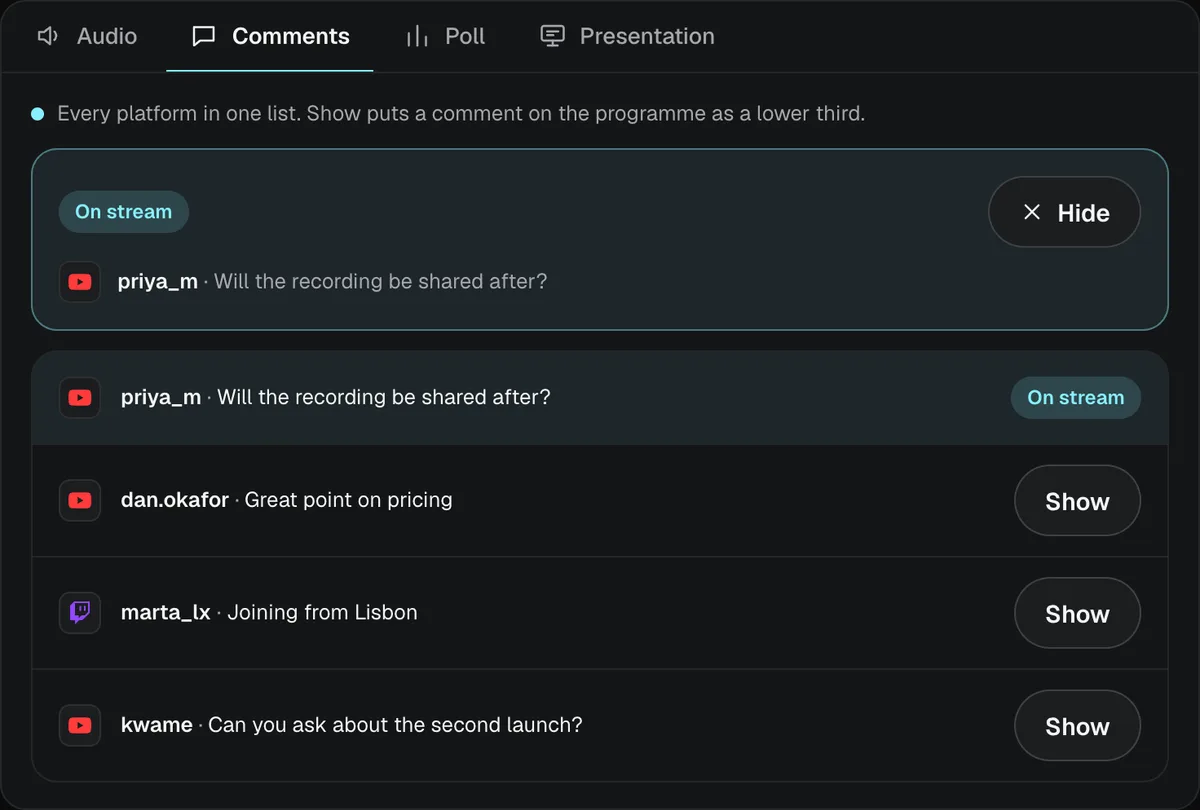
YouTube, Twitch and Kick in one list.
Comments from YouTube, Twitch and Kick arrive in one panel beside your stream. Tap Show and one goes on screen as a lower third, in your brand.
- Chat on screen as an overlay, for Twitch, Kick and YouTube
- Your mods can switch scenes from chat: brb, live, fix, bitrate
Questions
Something else? Write to live@getlumbus.com.
Which platforms can I stream to?
YouTube, LinkedIn, Facebook, X, Twitch, Kick, TikTok, Instagram, Rumble, Trovo, DLive, Vimeo, Steam and any custom RTMP address, all at once from one stream: 5 on Studio, 8 on Studio Plus, 12 on Studio Pro, 20 on Studio Max.
Is there a bitrate limit on what I send?
Send at the quality your connection can carry. Studio makes its own output from it, so changing the quality viewers get never restarts your stream.
The full answerHide the full answer
Send H.264 or H.265 at the bitrate your connection carries; 4 to 8 Mbps is the usual range at 1080p60. Studio makes its own output from that one feed, up to 1080p60 on every Studio plan (1440p60 and 4K60 come with Custom, for YouTube and custom RTMP; Twitch, Kick and TikTok take 1080p at most), so a change of output quality never restarts anything mid-stream.
What happens when my signal drops?
Viewers see a “Be right back” screen instead of a frozen picture, and Live comes back by itself when your signal returns. All your platforms stay connected the whole time.
The full answerHide the full answer
Studio watches your feed once a second. Weak for a few seconds and viewers get your Low bitrate scene; gone, and they get Be right back. A frozen or black picture arriving at a healthy bitrate is seen too: shown as a word, and sent to Be right back if you turn that rule on. Live comes back by itself once the signal has held for a few seconds, with a margin, so it never flaps. Viewers see a designed scene, not a frozen frame, and all your platforms stay connected the whole time.
Is live streaming really unlimited?
Yes, on every paid Studio plan: unlimited live hours, for normal creator and production use. One stream can run up to 24 hours; start it again to carry on. Free has 2 hours live a month.
The full answerHide the full answer
Live Studio hours are unlimited on every Studio plan: stream as often and as long as you like, to every platform your plan includes. Unlimited live production is for normal creator and production use. A single stream can run for up to 24 hours; start it again to carry on. Continuous 24/7 channels, automated rebroadcasting and unusually high-volume use need a Custom plan.
- YouTube
- X
- Twitch
- Kick
- TikTok
- Rumble
- Trovo
- DLive
- Vimeo
- Steam
Pick a plan and go live.
Buy by the month, or by the year to save 12%. Want to try it first? Studio Pro is free for three days, with eight hours on air and no card. Or start for free: two hours live a month, for as long as you like.